Open a line
On the Ledger, press any line.
A window opens over the list. Its title is the type of the line and, under it, the description.
Read what is behind it.
At the top are the amount, to a fraction of a cent, where the line stands, and its date. What comes under them depends on the type of line: the sections below take them one by one.
Close the window with the cross, or press Esc.
You are back on the list, on the same page of it.
A line’s window has its own address. You can bookmark it or send it to a colleague who may open the ledger.
A day of AI usage
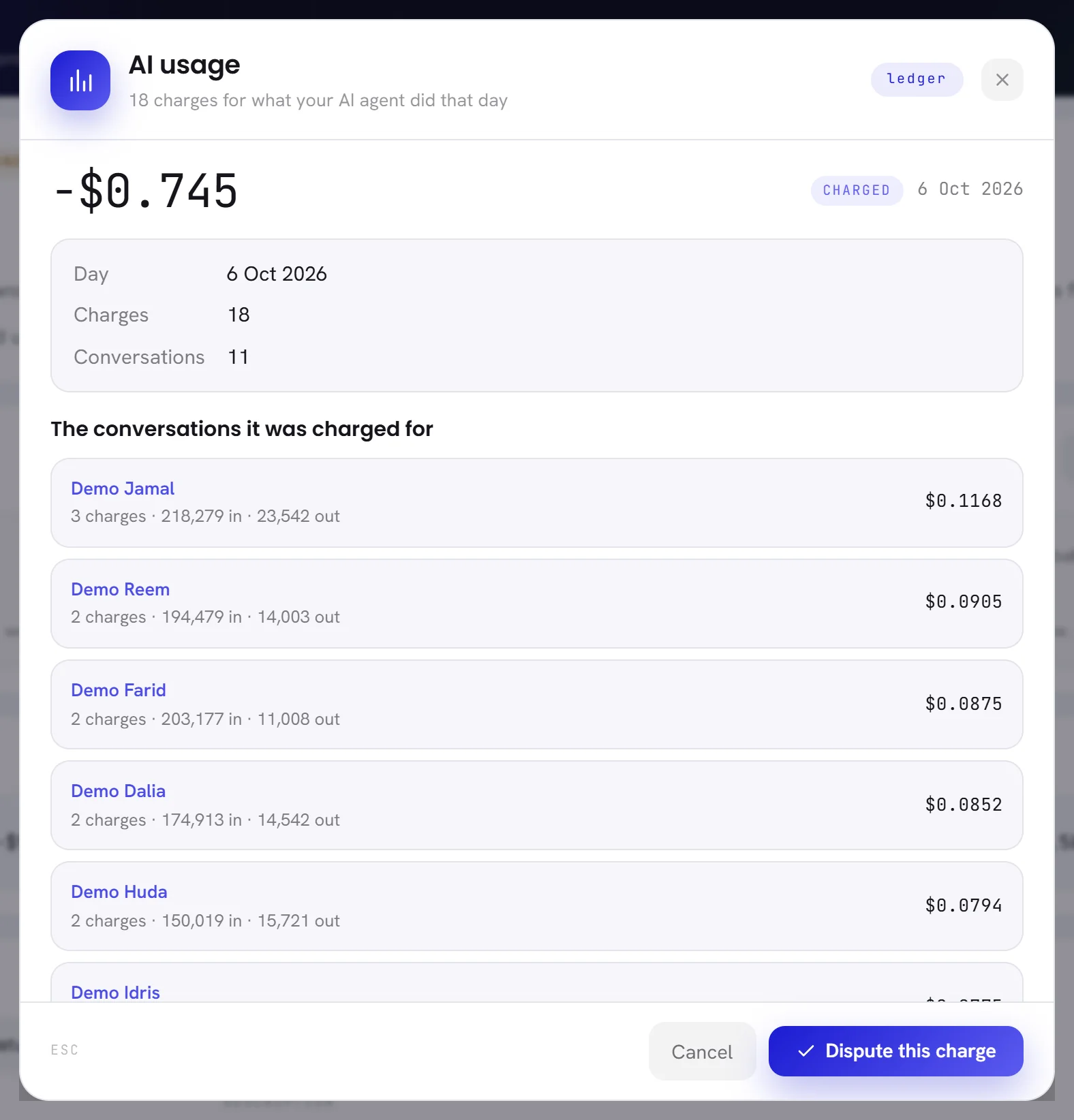
| On the screen | What it does |
|---|---|
| Day | The day, on your workspace’s time zone. |
| Charges | How many pieces of work your agent was charged for that day. |
| Conversations | In how many conversations. |
The conversations it was charged for lists them, the dearest first: who the conversation is with, how many charges, the tokens your agent read and wrote, and what it came to. Press a name to open the conversation in the Inbox.
- The fifty dearest are listed. When there are more, a line under the list says how many, and what they came to together.
- A conversation you are not allowed to open is listed without its name.
- Outside a conversation is work that belongs to no conversation, such as Studio previews, with its number of charges and its cost.
What your agent is charged for, and what it is not, is in AI usage and the AI wallet.
A top-up
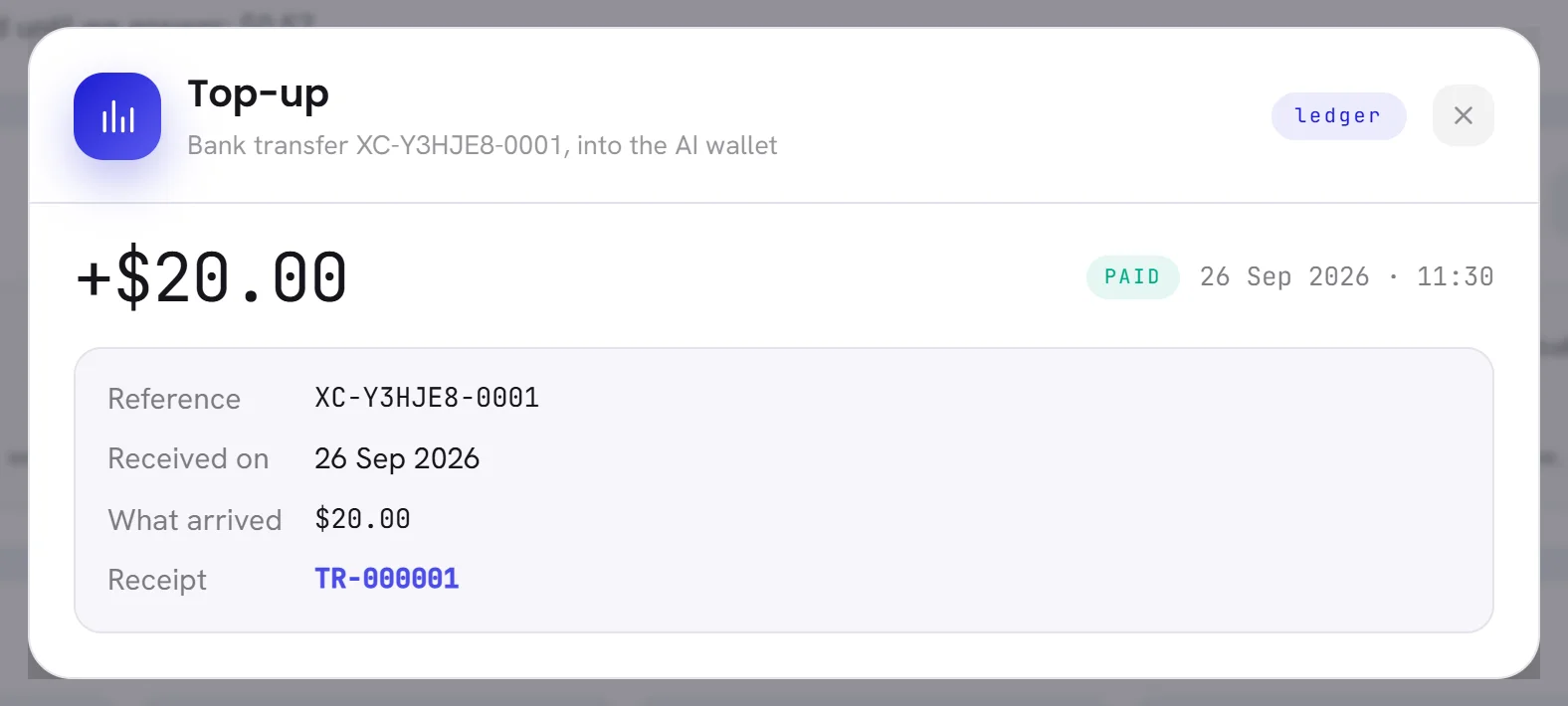
| On the screen | What it does |
|---|---|
| Reference | The top-up’s own reference, the one that was on the transfer. |
| Received on | The day the transfer arrived in our account. |
| What arrived | The amount of the transfer. |
| Put into the wallet | Shown when it is less than what arrived: when VAT is added on top of a top-up, the VAT is taken off first. |
| Receipt | The receipt’s number. Press it to open the receipt in a new tab. |
Asking for a top-up and paying it are in Top up your AI wallet. What is on a receipt is in Receipts and wallet history.
A plan payment
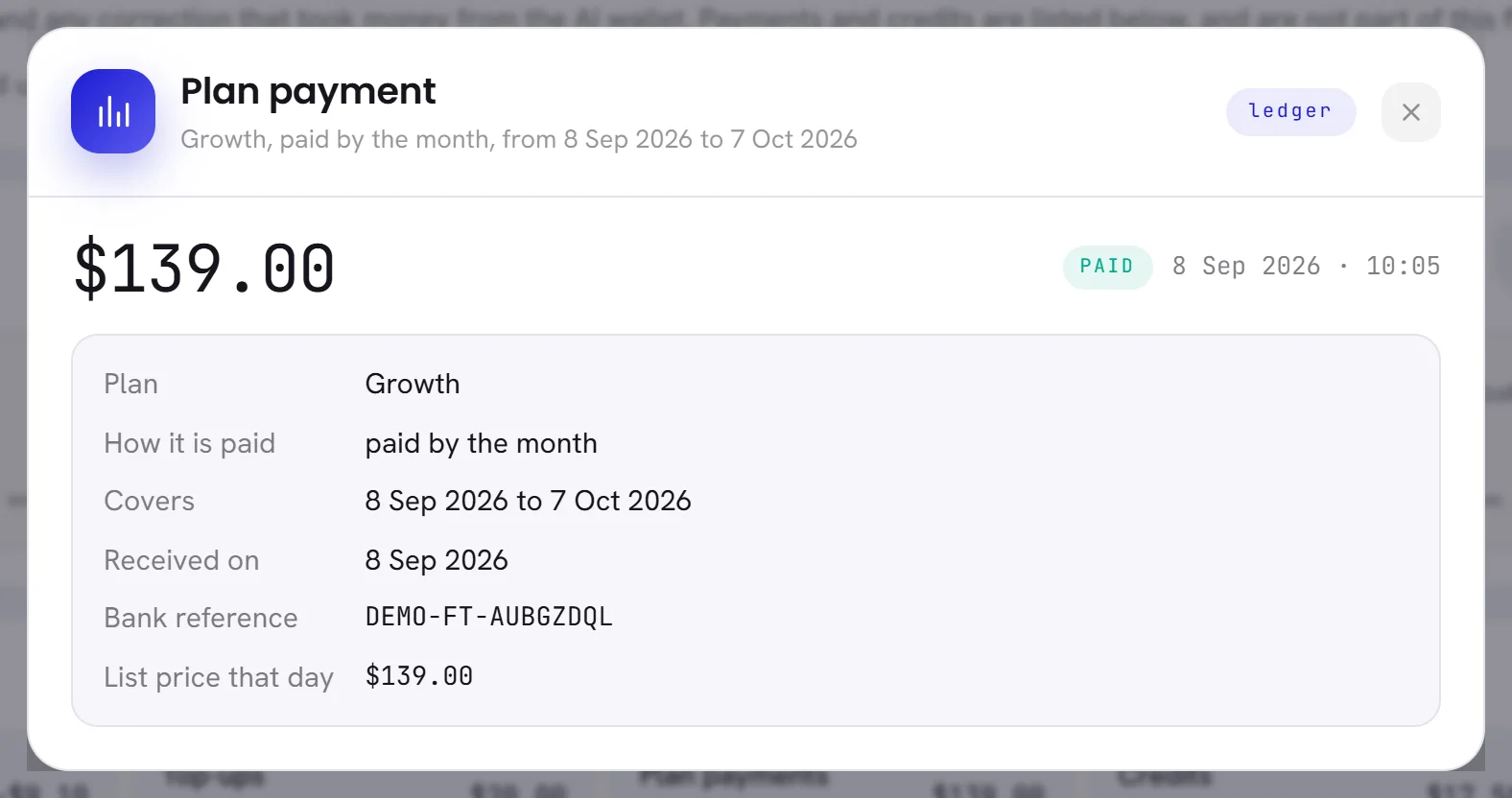
| On the screen | What it does |
|---|---|
| Plan | The plan the payment was for. |
| How it is paid | By the month, or for the year at once. |
| Covers | The first and the last day the payment pays for. |
| Received on | The day the transfer arrived in our account. |
| Bank reference | The bank’s own reference for the transfer. |
| List price that day | What the plan cost on our price list on that day, for the same stretch. A plan we quoted for you has no list price. |
| The request | When the payment answers a plan you asked for on Plan & billing: its reference, who asked, and when. |
| Note | A note from our team, when there is one. |
A plan payment is written down by our team when the transfer arrives. It keeps the plan and the price of that day: a price that changes later changes no line.
When a payment was written down by mistake, our team takes it back with a line of its own, Plan payment undone. Both lines are then marked Undone, each window leads to the other, and the second one says why.
A refund, a credit or a correction
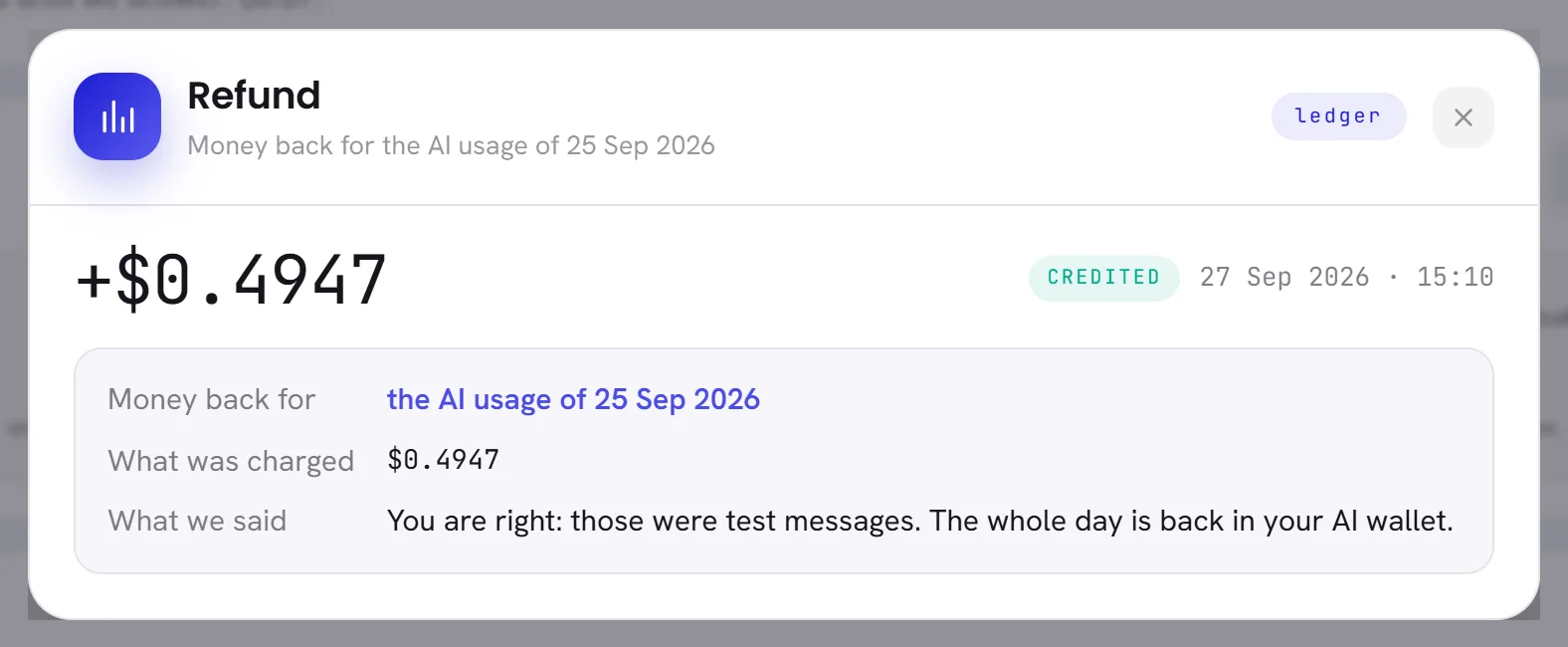
| On the screen | What it does |
|---|---|
| Money back for | On a refund: the charge it gives money back for. Press it to open that line. |
| What was charged | What that line had charged when you disputed it. |
| What we said | Our answer to your dispute. |
- A Correction says that our team made it by hand. Its description is the note they wrote for you.
- Free credit, Included AI usage and Included AI usage, unused each say what they are. How the included usage works is in The AI usage your plan includes.
Good to know
- A charge can be disputed from its window: see Dispute a charge.
- Dates and times are on your workspace’s time zone.
- Opening a receipt from a top-up’s window is written in the activity log, like opening it anywhere else.