Before you start
- You are an org admin of the workspace.
- Your plan includes connected apps: Plan & billing shows what your plan has.
- If your account is in more than one workspace, open the one you want first, under Your workspaces in your account menu. An app is connected to the workspace you are in.
Connect the app
Open Settings, then Connected apps, and go to How to connect.
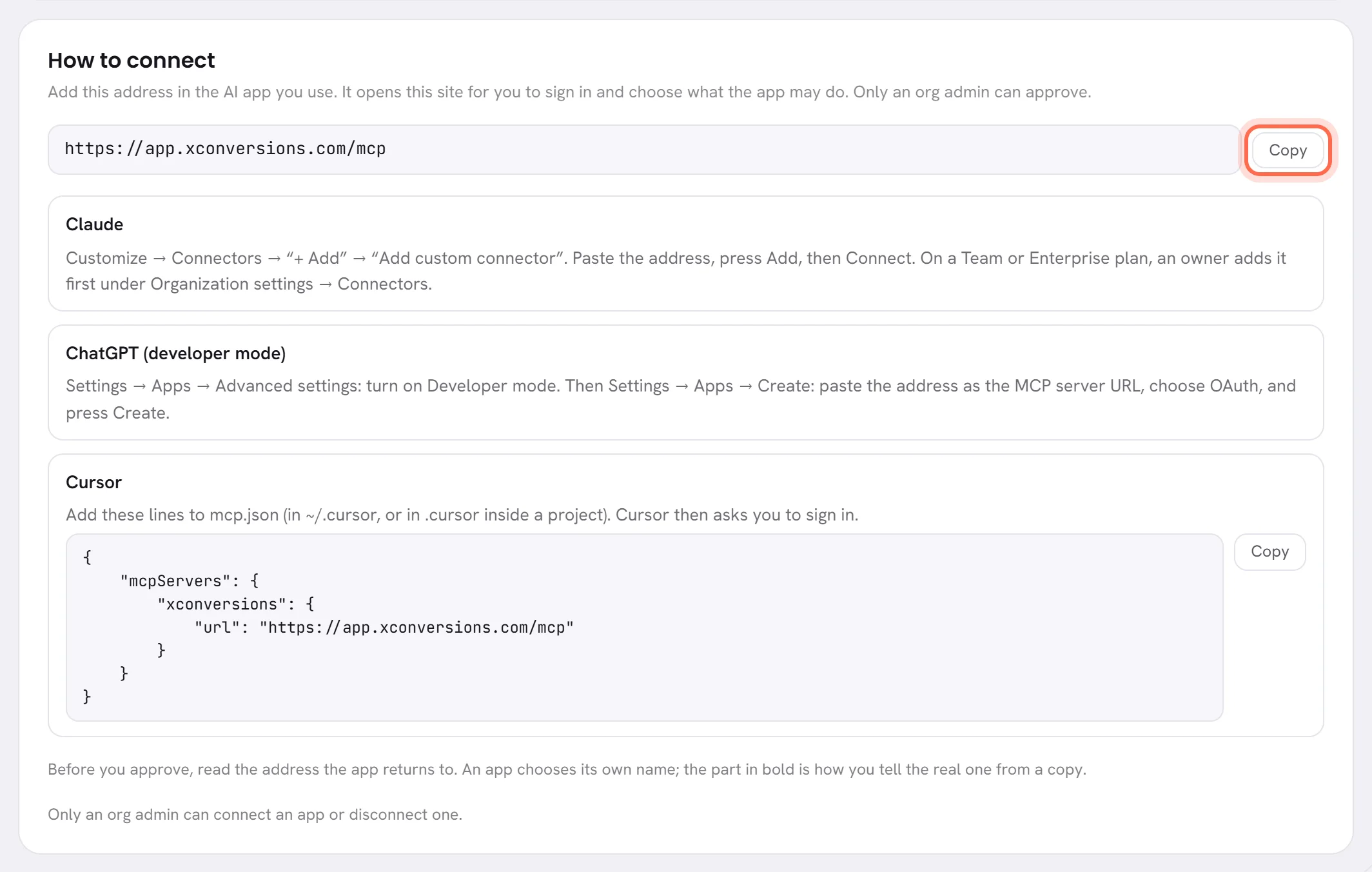
Press Copy beside the address.
The button says Copied. The address is the same for every app.
Add the address in your AI app.
The card gives the steps for Claude, ChatGPT (developer mode) and Cursor, in each app’s own menu names.
Another app works the same way: add the address where that app adds a custom connector, or an MCP server.
Sign in to xconversions when the app opens it.
The app opens this site in your browser. Sign in as you always do, with your two-factor code if you use one.
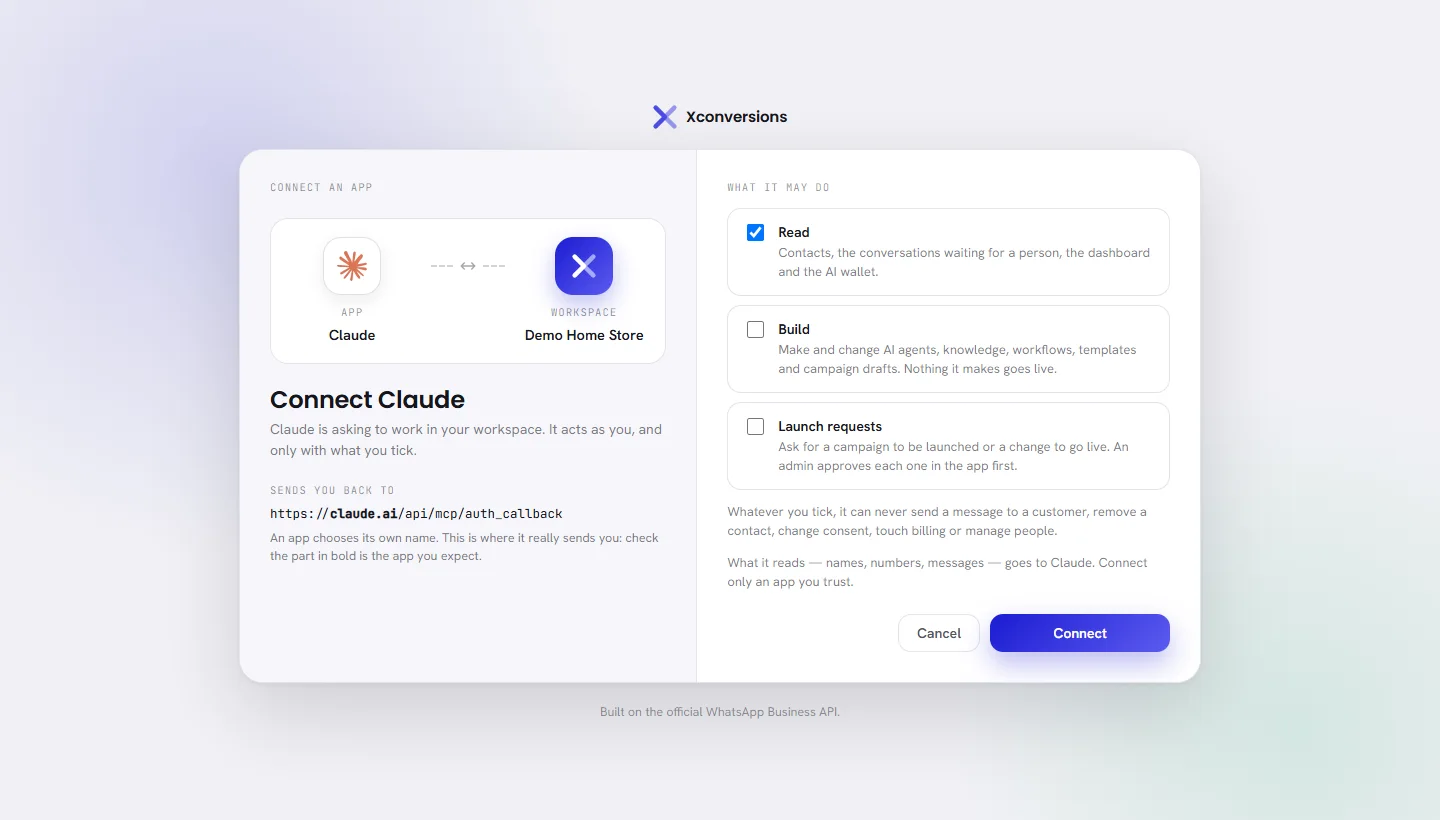
Read who is asking.
The screen Connect an app shows the app and your workspace side by side. Under them, Sends you back to gives the address the app returns to, with its domain in bold.
An app chooses its own name, and anybody can call an app anything. The address is the one thing on this screen it cannot make up: check that the part in bold is the app you expect.
An app that xconversions knows by that address is drawn with its own logo. Any other app has a plain icon, whatever it calls itself.
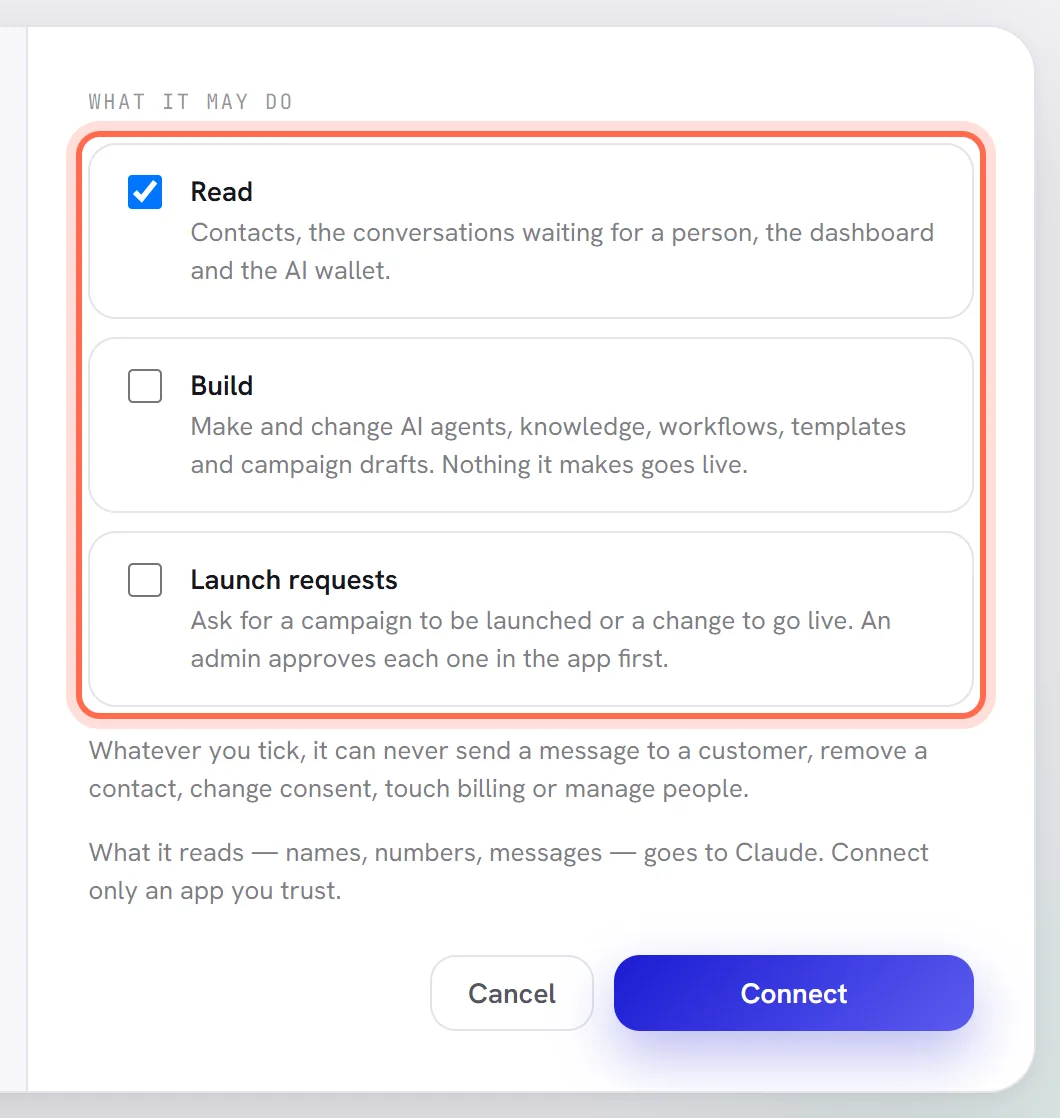
Tick what it may do, under What it may do.
A new app starts with Read ticked. Add Build and Launch requests if you want them: see What an app may do.
Press Connect.
You are sent back to the app, which can now work in your workspace. Cancel sends you back too, and tells the app no.
The app is now on the list What is connected, with your name, the day, and what it may do.
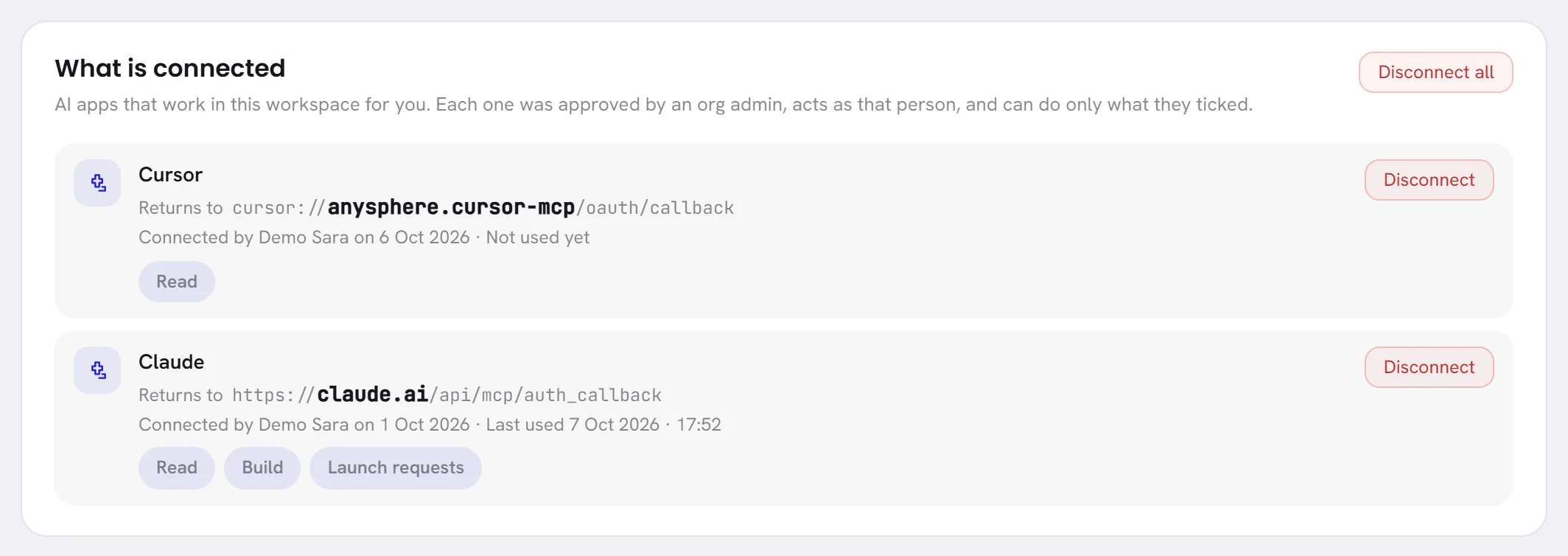
Change what an app may do
Connect it again from the app. The same screen opens: tick what it may do from now on, and press Connect.
It takes the place of the earlier connection, so the app keeps one line on the list.
When the screen says the app cannot be connected
The screen then reads This app cannot be connected and gives the reason. Nothing was connected, and Cancel takes you back to the app.
| What it says | What to do |
|---|---|
| Only an org admin of the workspace can connect an app. Ask one of yours. | Ask an org admin to connect it, signed in as themselves. |
| Your plan does not include connected apps. | See what your plan has on Plan & billing, or change plan: see Choose or change a plan. |
| Connected apps are not open yet. | Connected apps are not available at the moment. Write to us if you were expecting them: see Get help. |
| This workspace is not open at the moment. | The workspace is suspended. Write to us: see Get help. |
| This account has no workspace to connect an app to. | Sign in with the account you use for your workspace. |
| Tick at least one thing it may do. | Tick at least one box, then press Connect again. |
Good to know
- The app acts as you. It can do what you ticked, and never more than you can do yourself.
- Each person connects their own. Two admins who use the same app are two lines on the list.
- An app that has not been used for 60 days has to be connected again.
Questions
The app asks me to sign in again.
The app renews its own access while it is in use. After 60 days without use, or after it was disconnected, connect it again.
I connected the same app twice.
The last connection takes the place of the earlier one: the app has one line on the list.
The app is not one of the three on the card.
Add the address where your app adds a custom connector, or an MCP server. The rest is the same: sign in, read who is asking, tick, and press Connect.